Marketing UI
Two Factor Authentication
2FA setup and verification form component
Two Factor Authentication 1
This block is a two-factor authentication modal that prompts the user to enter the code received via an authenticator application. It contains a six-digit input field for the authentication code, a link to use a recovery code, and a 'Reset Password' button for resetting the password if necessary.
Semji
Two Factor Authentication
Please confirm access to your account by entering the code provided by your authenticator application
Two Factor Authentication 2
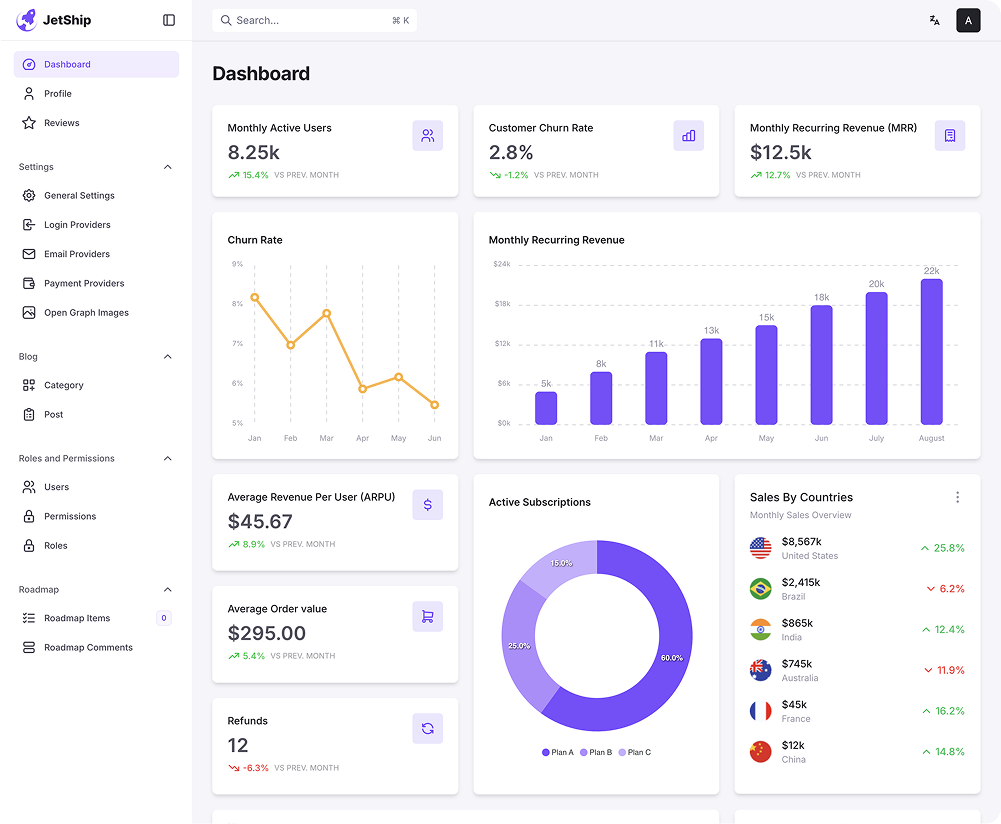
This block features a two-factor authentication modal on the right side, with an adjacent dashboard on the left. The dashboard displays various key metrics, including active users, customer churn rate, and other business statistics in graphical form. The authentication modal prompts the user to enter a code and a new password for account security.
Semji
Two Factor Authentication
Please enter your current password and choose a new password to update your account security.
Two Factor Authentication 3
This design block features a password reset modal on the left side, which requests a code sent to the user's mobile number. There is an option to use a recovery code or resend the code. On the right, a Two-Factor Authentication (2FA) section encourages users to enable 2FA for enhanced security, explaining the benefits of adding an extra layer of protection to their account.
Enable Two-Factor Authentication (2FA)
Enhance the security of your account by enabling Two-Factor Authentication (2FA). With 2FA, you'll add an extra layer of protection.
Keeps your information safe
To get started, choose your preferred verification method and follow the instructions.



Two Factor Authentication 4
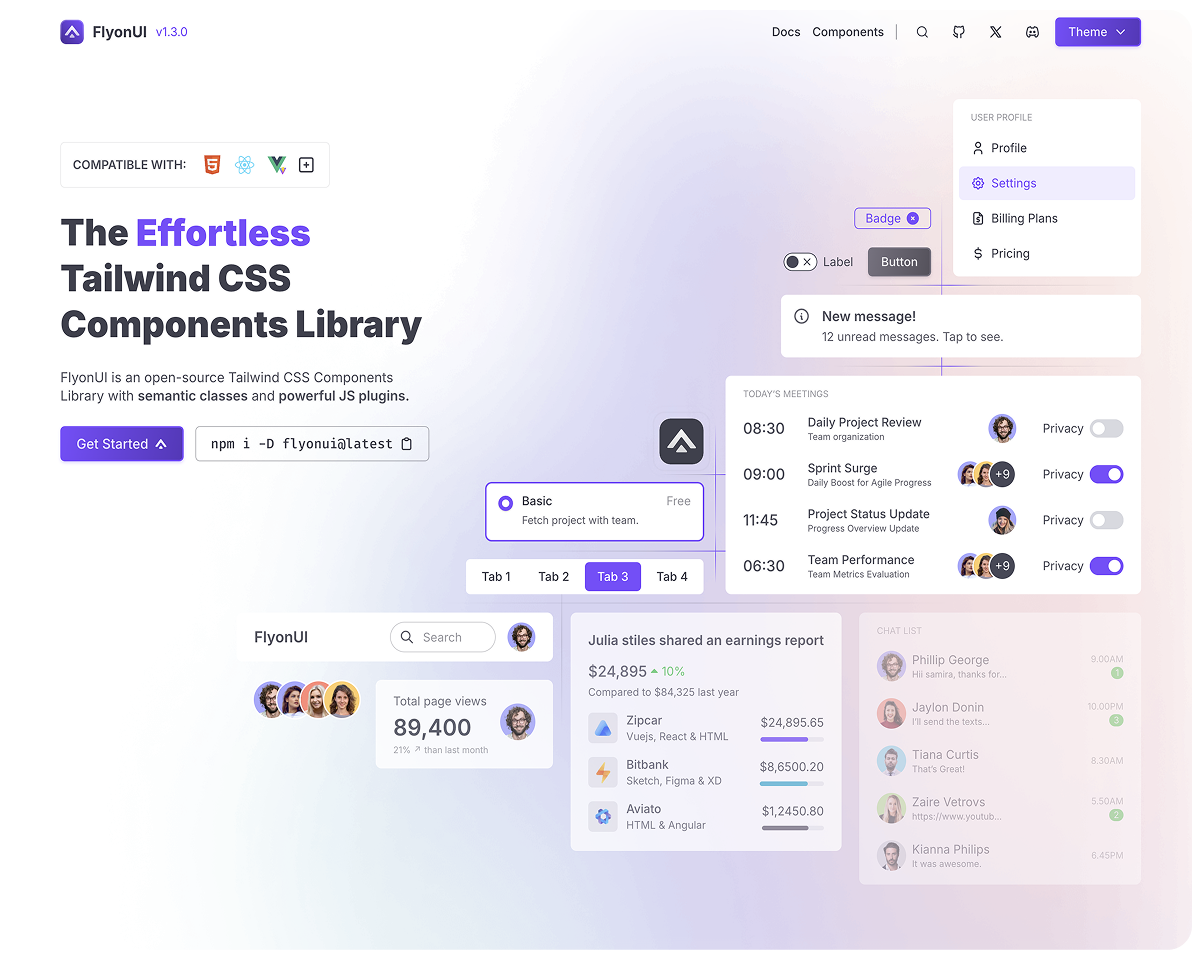
This design block includes a two-factor authentication (2FA) section on the left, encouraging users to enable 2FA for added security, with a description of the benefits. On the right side, there is a password reset form, where users are prompted to enter the code sent to their mobile number, with an option to use a recovery code or resend the code. This section combines both security and password management features.
Enable Two-Factor Authentication (2FA)
Enhance the security of your account by enabling Two-Factor Authentication (2FA). With 2FA, you'll add an extra layer of protection.

Password Reset 🔐
We sent a code to your mobile number *****1234
Didn’t get the code ? Resend
Two Factor Authentication 5
This design block presents a Two Factor Authentication (2FA) form. Users are instructed to enter a 6-digit security code received on their mobile device to complete the authentication process. There is also an option to resend the code if it wasn't received, and a button to reset the password if needed. The design is clean and minimal, focusing on the authentication process.
Two Factor Authentication
We sent a verification code to your mobile. Enter the code from the mobile in the field below *****1234
Didn’t get the mail ? Resend