Dashboard
Dashboard Modal
Modal dialogs for payments, sharing, authentication, and more in dashboards.
Dashboard Modal 1
A pricing plan selection modal featuring two subscription options: the Basic Plan at $10/user and the Starter Package at $12/user. Each option includes a detailed list of features such as data storage capacity, integrations, reporting features, and support services. The modal also provides action buttons for purchasing and an option to chat with customer support.
Dashboard Modal 2
A congratulatory modal displayed after successfully subscribing to a service. It includes a checkmark icon, a message celebrating the subscription, and a note stating that the user will receive updates, news, and exclusive offers. The modal also features a 'Subscribe' button, inviting the user to continue or view further details.
Dashboard Modal 3
A payment method addition modal where users can enter their card details to activate a plan. The modal displays a sample credit card image and allows users to fill in their name, expiry date, card number, and CVV. The 'Add Card Details' button allows users to submit the payment method, while the 'Cancel' button gives an option to discard the action.
Dashboard Modal 4
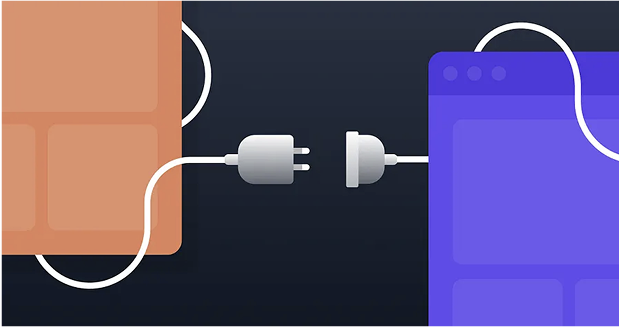
A workspace connection modal that allows users to send a request to connect with another workspace. The modal includes a workspace URL field to input the target workspace and a connection request button. The visual design shows two connected devices to symbolize workspace integration. The user can either send the request or cancel the operation.
Dashboard Modal 5
A modal for selecting the number of seats needed for a plan. The user can adjust the number of seats via a slider, with the total price per seat and monthly cost displayed. The modal also includes an option to toggle annual pricing with a 20% discount. The user can proceed to the payment details or go back to the previous page.
Dashboard Modal 6
A schedule creation modal where users can add a new event, task, or meeting. The modal includes fields for the event title, type (Meeting call, Calendar, Task), location, date, time, description, attendance, and an option to upload attachments. The user can also select recurrence options and choose a platform (e.g., Zoom). The 'Create Event' button allows for the event to be saved.
Dashboard Modal 7
A sharing modal for a project, allowing team members to collaborate and review a design. The modal provides an option to share the design via a public link or by assigning access to specific team members with defined roles (Owner, Editor). It also allows searching for team members to invite to the project. The user can choose between 'Copy Link' or 'Embed' options to share and save the changes.



Dashboard Modal 8
A file upload modal allowing users to upload a document, specifically a CSV or PDF file. The user can drag and drop the file or choose it manually. A progress bar is displayed showing the current upload status. Additionally, there is an option to import a file from a URL and a 'Help Center' link for assistance. The modal includes 'Cancel' and 'Import' buttons.
Dashboard Modal 9
An employee details editing modal that allows administrators to update information about an employee. It includes fields for personal information (name, age, gender, email, address, etc.), job details (division, position), and a profile picture. The user can save or cancel changes to the employee's record, and a 'Save Details' button is provided for submitting the updated information.
Dashboard Modal 10
A product update modal used to edit or update product information such as name, category, brand, price, dimensions, and description. It allows the user to select whether the product is available both online and in-store or only in-store. There is also an option to upload product images, and the user can either update the product or delete it.
Dashboard Modal 11
A modal for adding a new payment card to complete a transaction. The user is prompted to enter the card number, name, expiration date, and CVV. There is also an option to save the card for future billing. The modal includes 'Submit' and 'Cancel' buttons for confirming or discarding the action.
Dashboard Modal 12
A modal for adding a new address for express delivery, allowing users to specify their home or office address. The user can provide personal details such as name, country, address lines, landmark, city, state, and zip code. There is an option to mark the address as a billing address, and the user can select between home or office delivery times. The modal includes 'Submit' and 'Cancel' buttons for confirming or discarding the address addition.
Dashboard Modal 13
A 'Refer & Earn' modal that allows users to send a referral link to a friend. The modal includes sections for sending an invitation, registration, and offering a free trial. Users can enter their friend's email to send an invitation and share the referral link via social media or copying it. Both the user and their friend receive 30 days of free access upon successful registration.



Dashboard Modal 14
A modal for enabling one-time password (OTP) verification by entering a mobile phone number with a country code. The user is prompted to enter their phone number, and a 'Send OTP' button is provided to trigger the SMS verification process. The modal also includes a 'Cancel' button to dismiss the action.
Dashboard Modal 15
A project sharing modal that allows users to add team members and assign roles such as 'Owner', 'Can Edit', or 'Can View'. The modal shows a list of team members with their respective email addresses and roles. Users can also generate a shareable project link or make the project public. A search function is available to add team members.





Dashboard Modal 16
A multi-step modal for creating an app. The user is guided through filling out essential details such as the application name, selecting the app category, choosing the framework, setting the database, and entering billing information. Each step in the process is represented with clearly labeled sections. The user can navigate through the steps using 'Previous' and 'Next' buttons, with the option to submit the form when complete.
Dashboard Modal 17
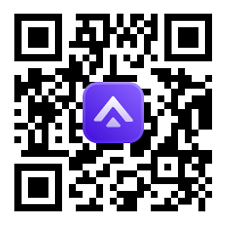
A multi-step modal flow for enabling One-Time Password (OTP) authentication. The user is presented with two options: using an authenticator app or SMS. If the authenticator app is selected, the user is shown a QR code to scan with their app to generate a 6-digit code. If the user opts for SMS, they are prompted to enter their phone number to receive a verification code. The flow includes options to cancel or submit the verification process.
Dashboard Modal 18
A modal for selecting a payment method during the checkout process. The user can choose from various payment options, including Visa, Mastercard, American Express, JCB, and Diners Club. Each option is accompanied by the respective payment method label (Credit or Debit Card). The user selects their preferred payment method and can proceed with the payment process.
Dashboard Modal 19
A navigation modal showing various options for interacting with the system, such as viewing pages, integrations, and users. The 'All' tab lists available pages like Marketing UI Page, e-commerce UI Page, and Dashboard UI Page, as well as integrations such as Jira and Inferno. The user section displays team members with their current status (e.g., 'In office' or 'On leave'). The modal also includes a search bar for quick navigation.





Dashboard Modal 20
An activity feed modal displaying recent notifications related to project activities. The feed includes mentions, feedback requests, file invitations, shared project updates, and new tags added to design projects. Each activity entry includes the person's name, activity type (mention, feedback request, file share, etc.), and time elapsed since the event. There are also options to interact with the notifications (e.g., reply to a mention or open a file).